On this page
Short answer
Download the Nureply CSV from Outreach2day, then in Nureply click Connect New Account > Import Multiple Accounts, drop the file and select which column is the address, password, servers and ports. Test the connections and click Import All Accounts. Host outreachmailstream.com, SMTP 465 and IMAP 993. Set the daily limit to 25 and turn on Slow Start; warm-up keeps running in Outreach2day.
What you get
- A CSV in Nureply's import format with the SMTP and IMAP settings of every mailbox you pick
- Warm-up keeps running in Outreach2day after the export, included in the price
- SPF, DKIM and DMARC already set on every domain
Export the CSV and import it into Nureply
In Outreach2day
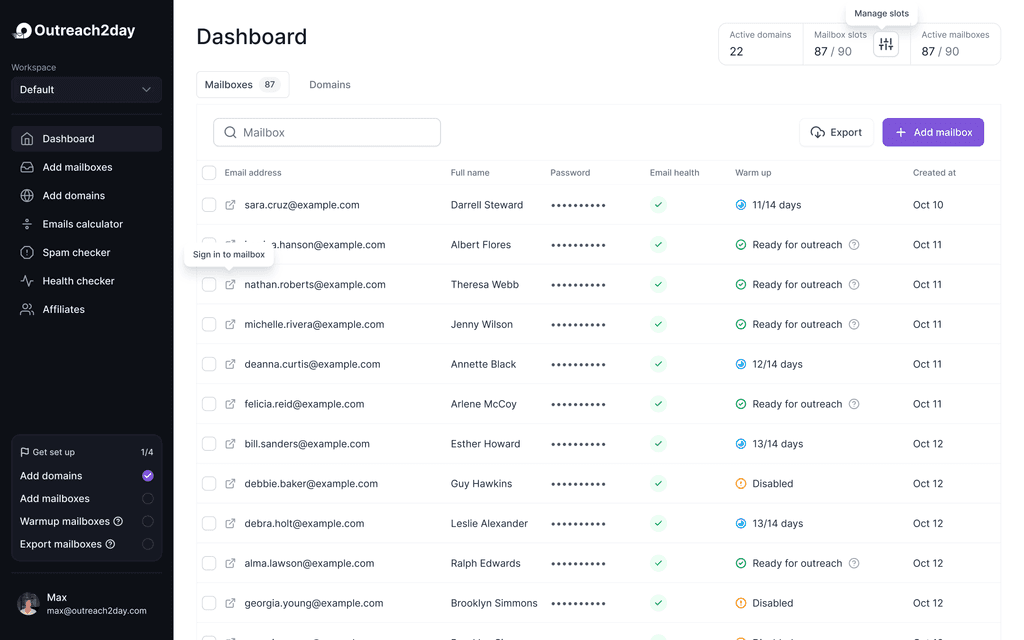
- Select mailboxes. Open Mailboxes and select the mailboxes to export, or export all of them
- Download the file. Click Export and pick Nureply. The CSV downloads with one row per mailbox
In Nureply
- Open the import. Click Connect New Account, then Import Multiple Accounts (support.nureply.com)
- Upload and map. Drop the file and select the required fields; Nureply accepts your own CSV as long as the fields are selected correctly (support.nureply.com)
- Test and import. Test the connections, then import them one by one or click Import All Accounts, and check the Accounts tab (support.nureply.com)
Fields in the Nureply CSV
The file from the Nureply export has these columns:
| Column | Value |
|---|---|
Email (IMAP Username) | The mailbox address |
Password (IMAP Password) | The mailbox password |
IMAP Port, IMAP Server | 993, outreachmailstream.com |
SMTP Username, SMTP Password | The address and the mailbox password |
SMTP Port, SMTP Server | 465, outreachmailstream.com |
Sender Name | Sender first and last name |
Daily Sending Limit | 100 |
Enable Warmup | true |
Tracking Domain | Empty |
Warm Up Starting Email Count, Daily Average Warm Up Emails, Delay (Days) to reach Maximum Warm-Up Volume | 5, 25, 5 |
- Nureply's example sheet names the columns Name, Address, Password, SMTP Port, IMAP Port, IMAP Server, SMTP Server, Daily Limit, Warm Up Enabled, Tracking Domain; our headers differ, so map them in the Select required fields step
- Daily Sending Limit is 100 in the file, the most Nureply's API allows; set 25
- Enable Warmup true turns on Nureply's warm-up as well; Outreach2day warm-up already runs, so set it to false if you don't want both
Connection settings
To add a single mailbox by hand, or to check what Nureply saved, use these settings:
| Field | Value |
|---|---|
| SMTP host | outreachmailstream.com |
| SMTP port | 465 (SSL/TLS) |
| IMAP host | outreachmailstream.com |
| IMAP port | 993 (SSL/TLS) |
| Username (SMTP and IMAP) | The full email address |
| Password (SMTP and IMAP) | The mailbox password from the export (the same for SMTP and IMAP) |
Sending settings per mailbox
- Mailboxes can send cold email 14 days after warm-up starts; warm-up keeps running after that
- Up to 25 cold emails per mailbox a day, warm-up not counted
- Start low on day 14 (for example 5 a day) and reach 25 around day 21
- To send more, add mailboxes and domains; keep the per-mailbox number at 25
Where to set it in Nureply:
- Daily sending limit per account (Accounts > Show Details) and per campaign; set 25 for Outreach2day mailboxes (support.nureply.com)
- Slow Start grows the account's current daily limit by 75% a day until it reaches the limit you set, across all campaigns (support.nureply.com)
Why 25: how many cold emails one mailbox should send a day. The day-by-day ramp: email warm-up schedule.
Warm-up
Warm-up for Outreach2day mailboxes runs in Outreach2day and is included in the price. It keeps running after you export the mailboxes, whichever tool sends from them, so the other tool's warm-up is optional.
- Nureply's warm-up runs in its user pool: Accounts > Show Details > Start Warmup (support.nureply.com)
Keep warm-up on while the mailbox sends: should I keep warm-up running while sending.
DNS and tracking domain
- SPF, DKIM and DMARC for every Outreach2day domain are set and checked automatically; you add nothing for sending
- A custom tracking domain is a CNAME on a subdomain of your sending domain. For a domain whose DNS Outreach2day hosts, add it in the app: Domains, open the domain, Manage DNS records, Add record (type CNAME). For a domain whose DNS stays at your registrar, add it there
- A tracking domain matters only with open or click tracking on. In the first cold email, leave out the tracking pixel and links and measure replies (see the answer on open tracking below)
- Nureply's custom tracking domain is a CNAME, for example track.yourdomain.com, pointing to email.nureply.com; enter it in the account's Tracking Domain field and click Check Domain (support.nureply.com)
More on tracking: do open tracking and links hurt cold email deliverability.
Troubleshooting
| Error or symptom | Fix |
|---|---|
| Network Error or Not Eligible on the tracking domain | Check that the record is a CNAME to email.nureply.com and wait 48 to 72 hours (support.nureply.com) |
| Connection test fails during import | Check the field mapping first: a password or port mapped to the wrong column fails the test (support.nureply.com) |
| Authentication failed / invalid credentials | Use the full email address as the username and the password from a fresh export. A disabled mailbox is exported with an empty password, so it can't connect |
| Connection timed out or SSL/TLS handshake error | Use SMTP port 465 with SSL/TLS and IMAP port 993 with SSL/TLS, both on outreachmailstream.com. Check that the tool did not switch the security setting to STARTTLS or none |
| Mailbox connects but can't send yet | Check the mailbox in Outreach2day: new mailboxes are being set up for up to 24 hours, and cold email starts 14 days after warm-up starts |
| Mailbox disconnected after it worked | Reconnect it in the tool with the same settings. With a one-click connection (Instantly, Smartlead) and auto-reconnect on, Outreach2day reconnects it for you |
If bounces climb after the mailboxes connect, look at the list: why a cold email bounce rate gets too high.
FAQ
Why do I map fields when importing the Nureply CSV?
Our column names differ from Nureply's example sheet. Nureply's Select required fields step lets you point each field at the right column, so the file imports without editing.
Can Nureply add accounts through its API?
Yes, on the Growth, Pro and Enterprise plans: POST /v3/user-api/accounts tests the SMTP and IMAP connection before it creates the account.
Do I need Nureply's warm-up for Outreach2day mailboxes?
No. Warm-up for Outreach2day mailboxes runs in Outreach2day and keeps running after you add them to Nureply.
Sources
Nureply documentation, read on 2026-10-09. Menus and field names change; if a step differs, Nureply's own page is the reference.
- Nureply: Connecting accounts with CSV: support.nureply.com/support/solutions/articles/5000888117-connecting-accounts-with-csv
- Nureply: Monitor mail sending: support.nureply.com/support/solutions/articles/5000888119-how-can-i-monitor-my-mail-sending-
- Nureply: Slow Start: support.nureply.com/support/solutions/articles/5000898259-understanding-slow-start
- Nureply: Warm-up: support.nureply.com/support/solutions/articles/5000888128-what-is-warm-up-and-why-is-it-important-
- Nureply: Custom tracking domain: support.nureply.com/support/solutions/articles/5000888096-adding-custom-tracking-domain-highly-recommended-
- Nureply API: api.nureply.com/docs